

Outcome
Monitor whether signals respond to the task and use manual recording controls only when the selected workflow requires them.
Applies to
Use Measure for structured examinations and the approved recording view for Free Recording. Visible display choices do not change the stored measurement.

Before you begin
- Confirm the correct project, Subject, configuration, and task.
- Keep the plates unloaded until tare is complete.
- Prepare written start and stop criteria for any manual recording.
Steps
- Open Measure by selecting a structured examination on Home.
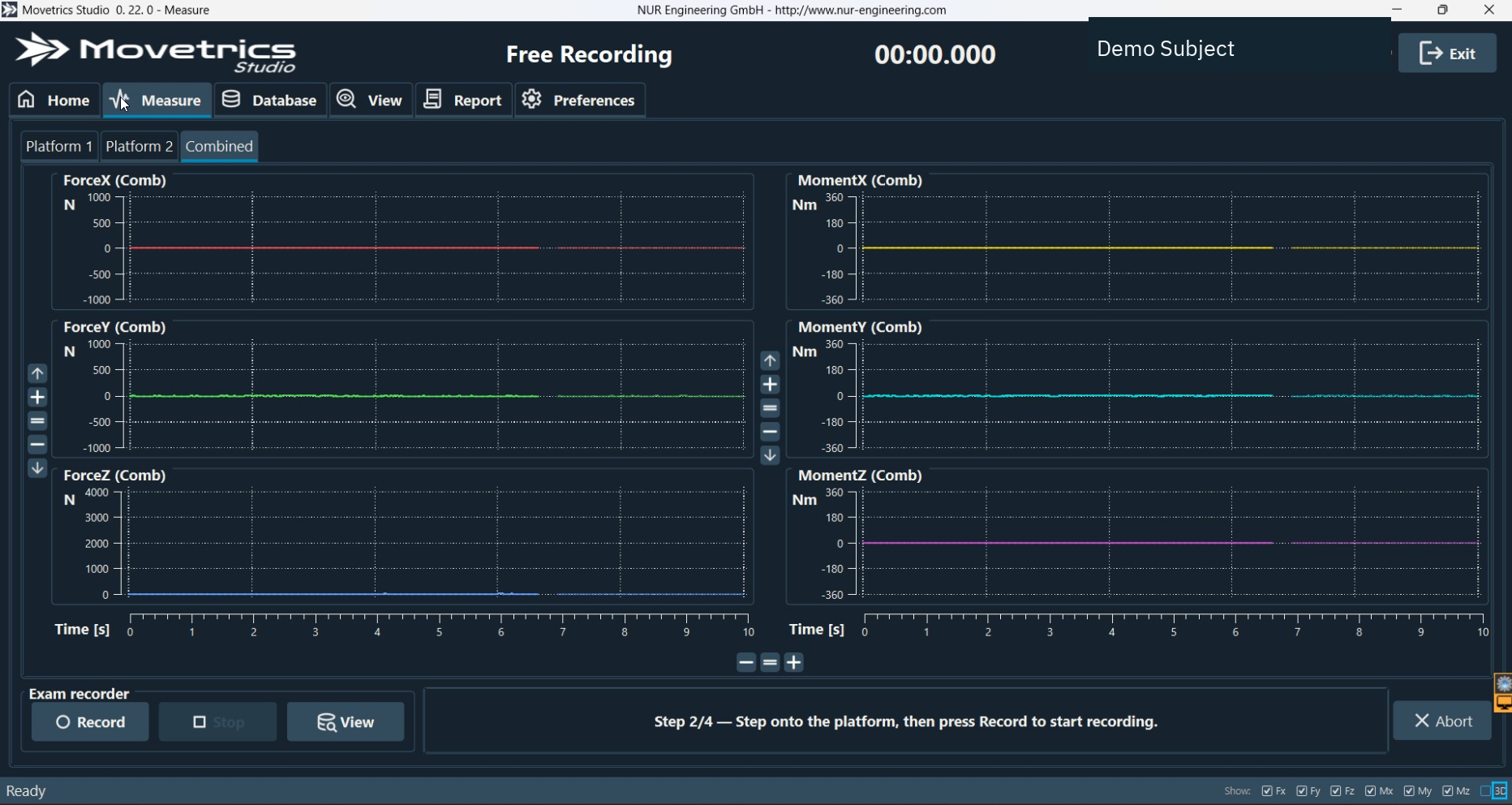
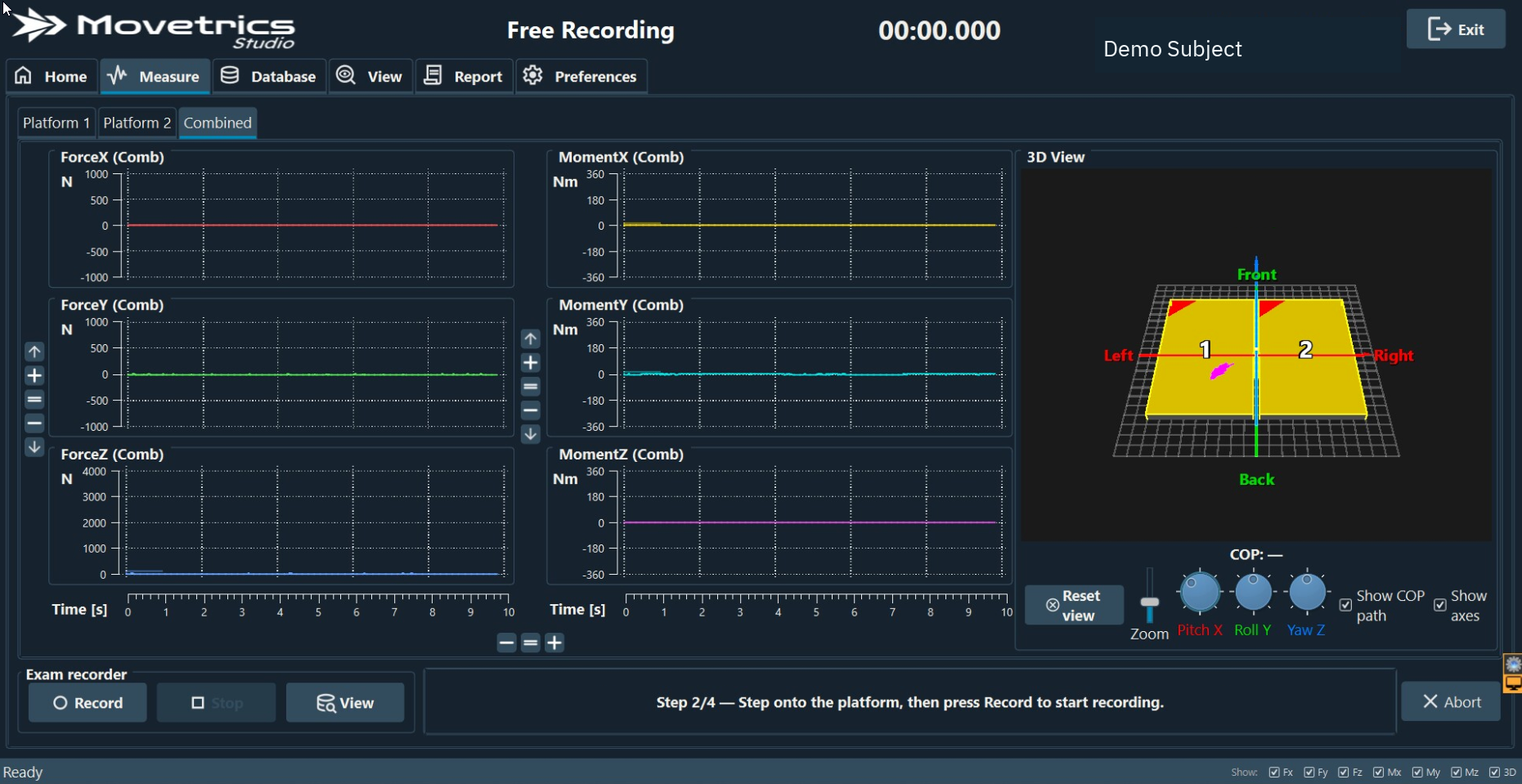
- Identify the wizard prompt, signal charts, and optional 3D display.
- Confirm that the displayed traces are stable when the unloaded plates are untouched.
- When the person steps on as prompted, confirm the traces respond and return to a stable pattern when the person stands still.
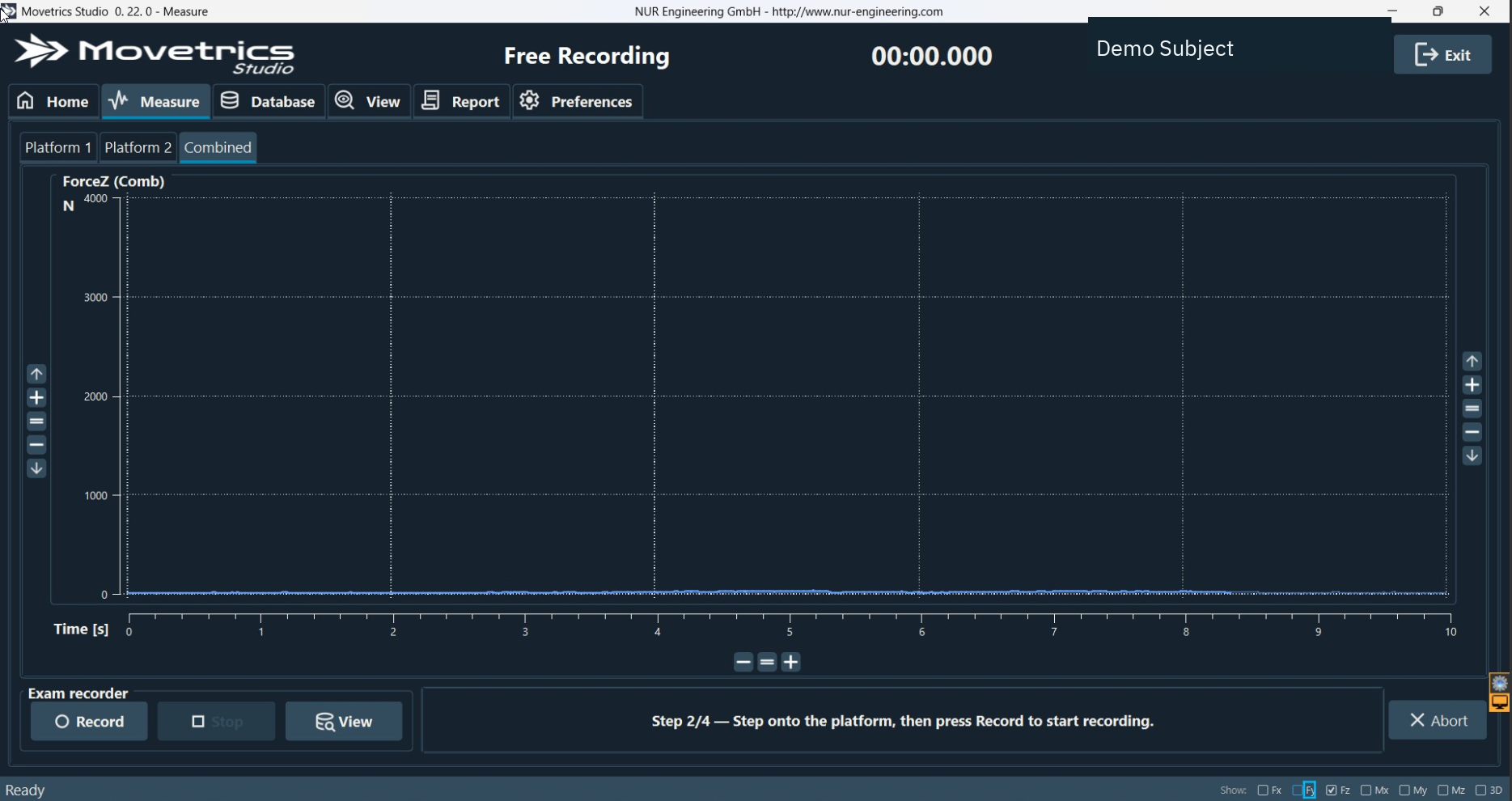
- Show or hide Force and Moment charts or the 3D display only as needed for a clear, responsive screen.
- During a structured examination, let the wizard control recording unless the interface explicitly instructs you to act.
- During Free Recording, select Record only at the written start point and Stop at the written end point.
- Watch both the person and the traces. Safety and task quality take priority over the visual display.
- After recording, open View and inspect the saved trace before generating or sharing any output.
You should now see
The displayed signals respond to contact and movement, the application remains responsive, and the saved recording covers the intended task.
Stop or repeat when
- Traces are absent, frozen, unstable at rest, or inconsistent with observed contact.
- The screen becomes unresponsive or recording starts too early or ends too late.
- A display problem affects the recording controls or operator attention.
If it does not work
Hide the 3D display first and check whether the signal charts and controls remain responsive. Do not continue if recording itself is affected; preserve any partial examination and note the exact behaviour.