

Outcome
Connect the installed hardware without changing its approved port, cable, or platform arrangement.
Applies to
Use this guide only with the customer-specific connection diagram supplied for the system. The available connectors and plate chain may differ between installations.
Before you begin
- Close Movetrics Studio and use the installed shutdown procedure.
- Keep every component dry and supported so no connector carries cable weight.
- Place the force plates in their approved positions before routing cables.
Steps
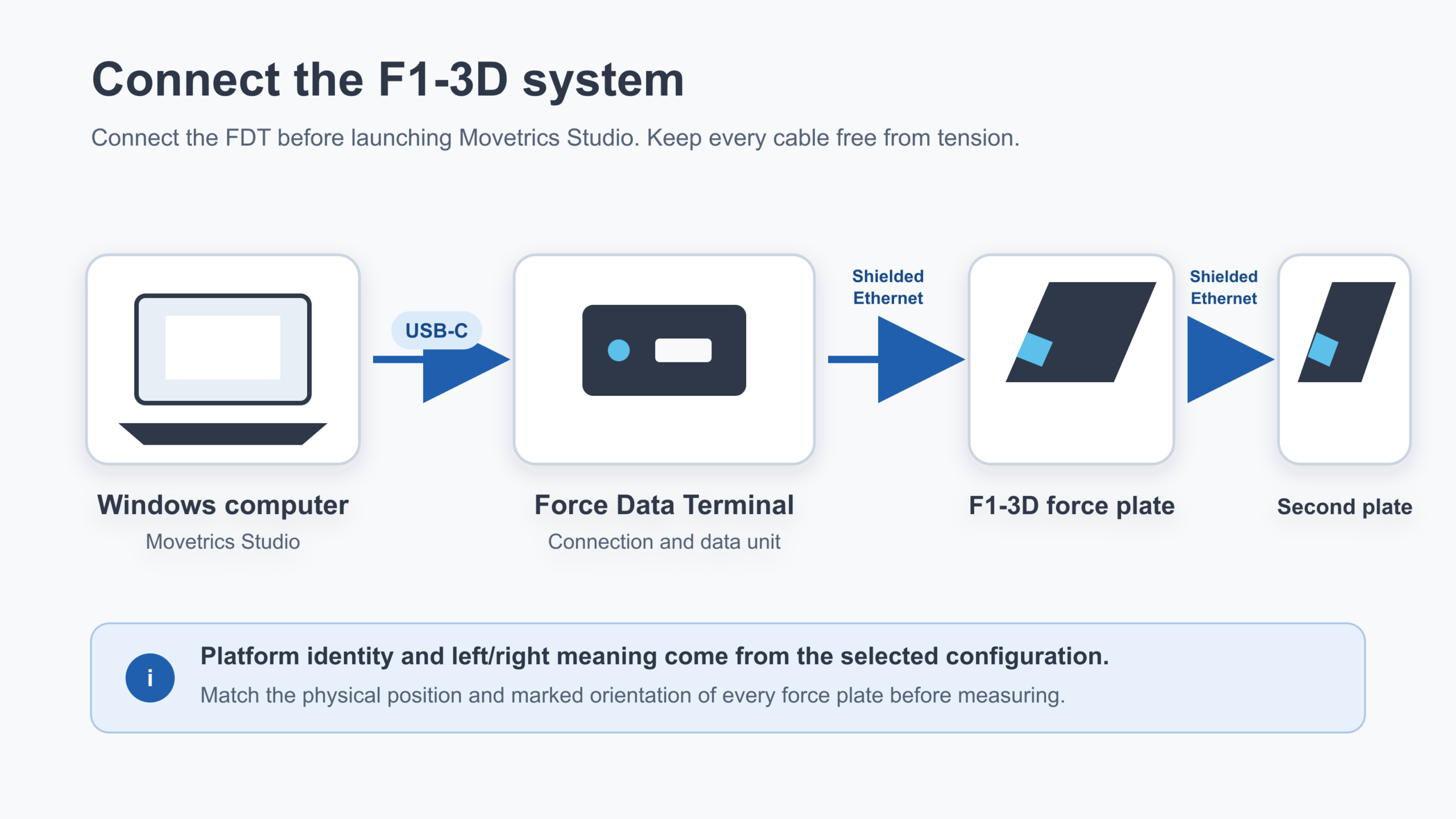
- Compare the physical components with the customer-specific connection diagram.
- Inspect every connector and cable end. Do not use a cable with bent parts, damage, moisture, or contamination.
- Connect the supplied Windows computer to the designated computer port on the Force Data Terminal using the supplied cable.
- Connect the Force Data Terminal to the first designated F1-3D force plate using the installed plate connection.
- Connect each additional force plate in the order shown in the customer diagram.
- Seat every connector fully without forcing it. Hold the connector body, never pull or twist the cable.
- Route cables away from feet, chairs, boxes, and moving equipment. Leave enough slack that plates and connectors are not pulled.
- Start the system using the installed sequence, then open Movetrics Studio.
- Confirm that the controller is detected before starting an examination.
You should now see
All connections match the approved diagram, cables are secure and free from tension, and Movetrics Studio reaches its ready state.
Stop or repeat when
- A plug does not fit easily or the diagram does not match the installed system.
- A cable or connector is loose, damaged, wet, or strained.
- The controller is not detected after one careful reconnection and restart.
If it does not work
Power down using the installed sequence and recheck the diagram from the computer to the final plate. Do not try service ports, alternative power sources, wireless connections, or unapproved cables.