

Outcome
Start the system in a known condition and leave it safely closed, clean, and ready for the next session.
Applies to
Use this checklist at the start and end of every day the Movetrics F1-3D system is used.
Before you begin
- Know the installed power and connection sequence for your customer system.
- Do not connect service interfaces or move force plates without confirming the approved configuration.
Steps
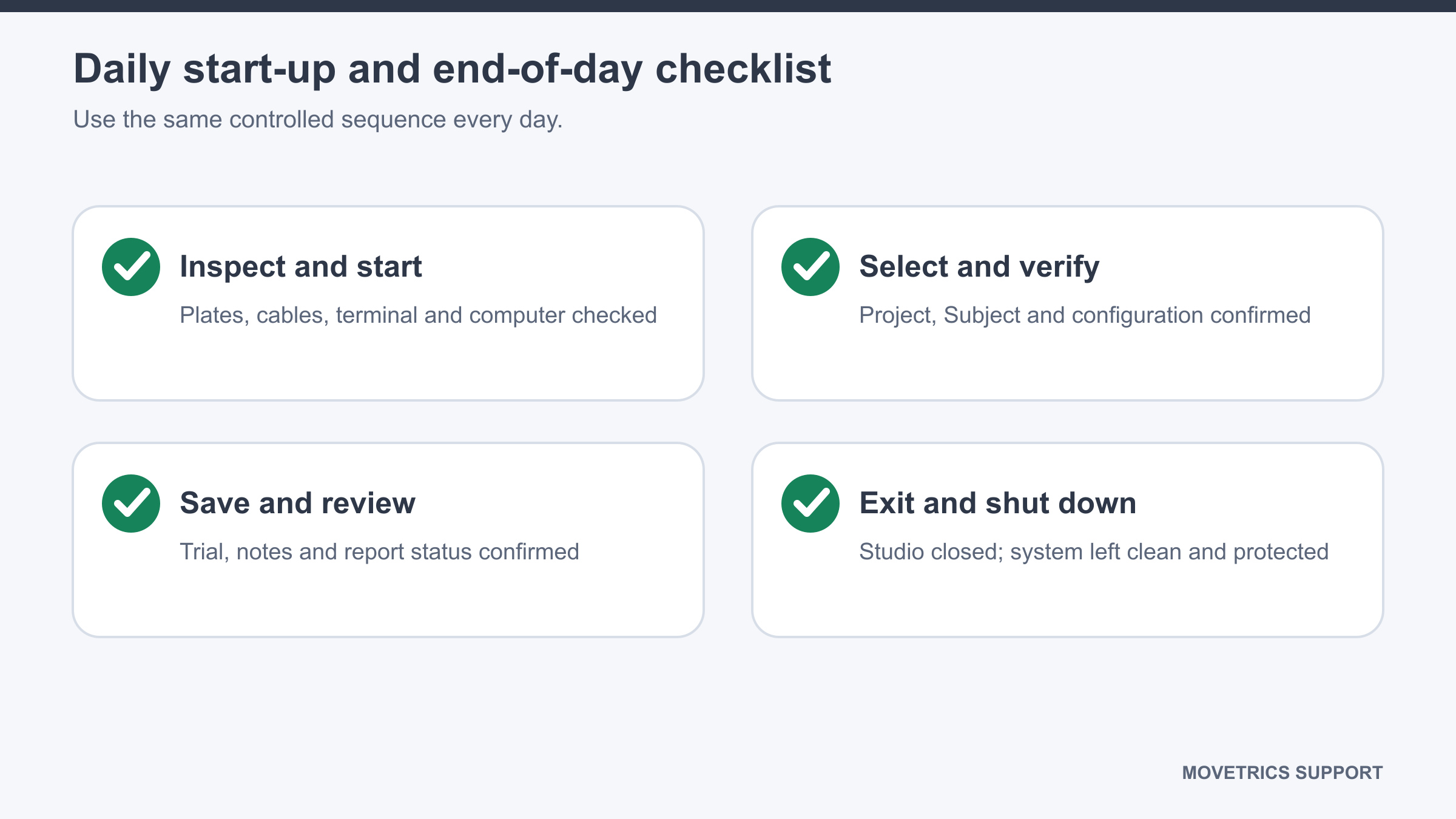
- At start-up, inspect each F1-3D force plate, the Force Data Terminal, and every visible cable and connector.
- Confirm the plates are stable, dry, unloaded, and in the approved positions.
- Clear the test and walking areas and route cables away from feet and moving equipment.
- Connect and power the system using the installed sequence.
- Open Movetrics Studio and wait for the ready state before starting an examination.
- Run the safety and quality check before the first person is measured.
- At the end of the day, finish the current examination and save required notes, reports, and exports.
- Return to Home and confirm that no recording or report generation is active.
- Use Exit and wait for Movetrics Studio to close.
- Shut down or disconnect the system only as required by the installed procedure. Hold plugs by the connector body, not the cable.
- Clean the surfaces using the approved method and leave every component dry.
- Store cables without sharp bends and protect the plates and Force Data Terminal from impact or loads.
You should now see
At start-up, Movetrics Studio is ready with an unloaded, stable system. At day end, the application is closed, required work is saved, and the equipment is clean and protected.
Stop or repeat when
- A component is damaged, wet, loose, or unstable.
- Movetrics Studio does not reach its ready state.
- A report, export, or recording is still active when you try to close the application.
If it does not work
Leave the affected component unused. Record what you observed and when it occurred. Do not open housings, repair cables, or change service settings.