

Outcome
Place the next examination under the correct project and person record while entering only necessary information.
Applies to
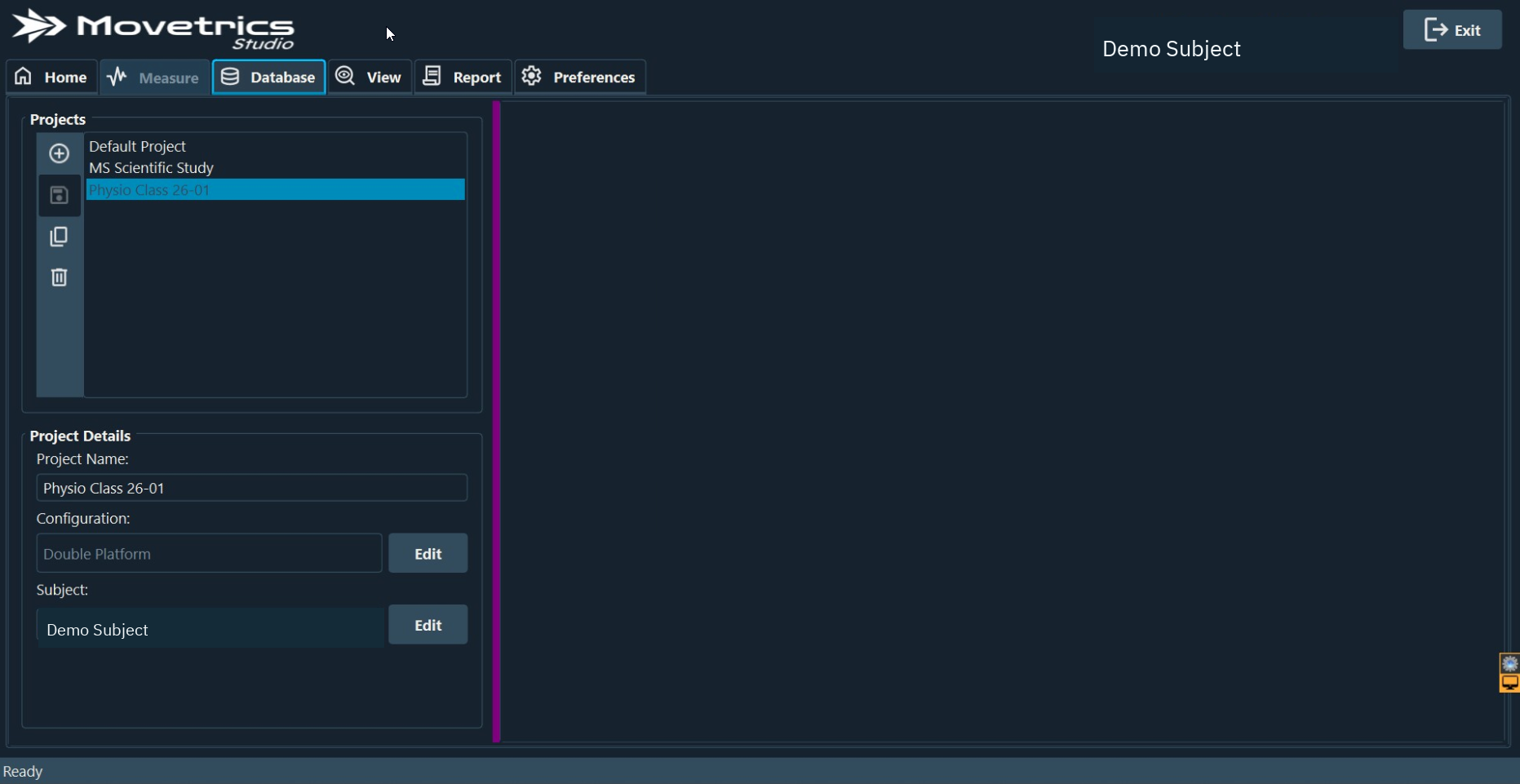
Use Database for record management and Home to select the records used for the next examination. In the software, Subject means the person being measured.
Before you begin
- Follow your organisation’s naming, consent, access, retention, and deletion rules.
- Check whether the project and Subject already exist before creating duplicates.
- Enter only information required for the approved purpose.
Steps
- Open Database.
- Search for and select the intended project. If it does not exist and your role permits it, use the plus control to create it with the approved name.
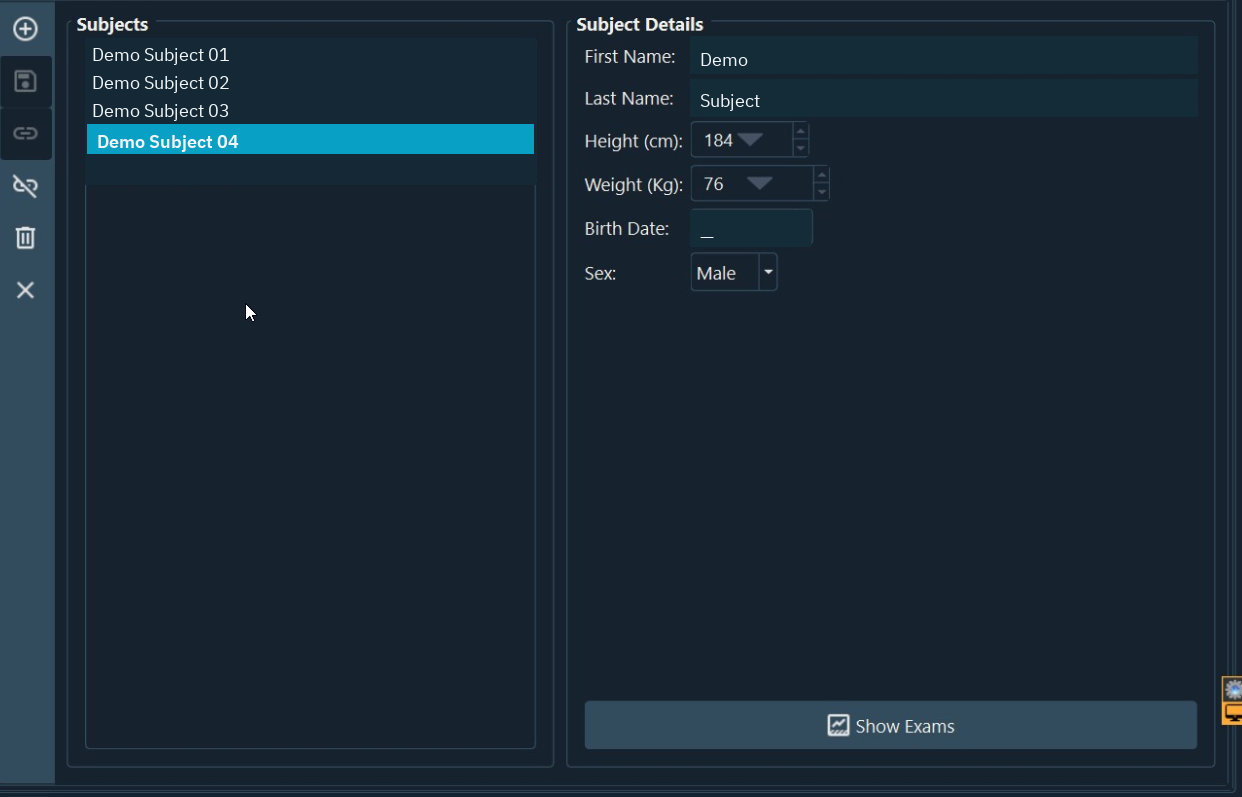
- Open Subject > Edit.
- Search for the person using the approved identifier. Select the existing record when it is clearly the correct one.
- If a new record is required and your role permits it, create the Subject and enter only the necessary fields.
- Link the Subject to the correct project.
- Save the project and Subject changes.
- Return to Home.
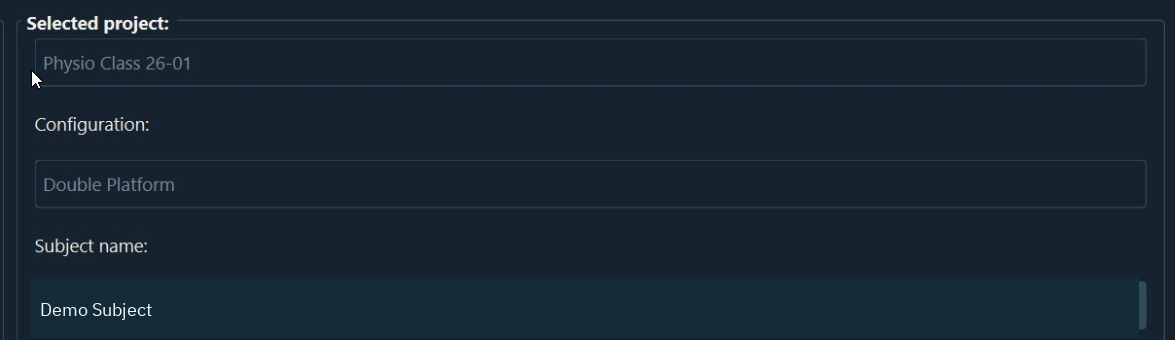
- Select the project and Subject, then verify both before choosing an examination.
You should now see
The correct project and Subject are shown on Home, with no duplicate record or unnecessary sensitive text added.
Stop or repeat when
- Two records may represent the same person and you cannot identify the correct one.
- The selected project or Subject is wrong.
- You are unsure whether information may be entered or shared.
If it does not work
Do not create a second record to bypass a selection problem. Leave the record unchanged, note the exact name or identifier shown, and ask the authorised customer administrator to resolve it.