

Outcome
Match Movetrics Studio to the physical force-plate layout before recording.
Applies to
Use an existing approved configuration. Platform numbers do not have a fixed universal left/right assignment; the selected configuration defines their positions and orientation.
Before you begin
- Place the F1-3D force plates on a stable surface in the intended approved layout.
- Identify each physical platform number and marked orientation.
- Know the walking direction for gait or the stance arrangement for the selected task.
Steps
- Open Home and locate the configuration selection.
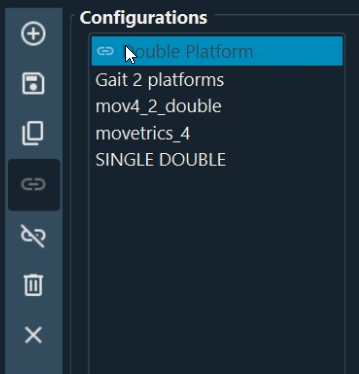
- Select the approved configuration intended for the task.
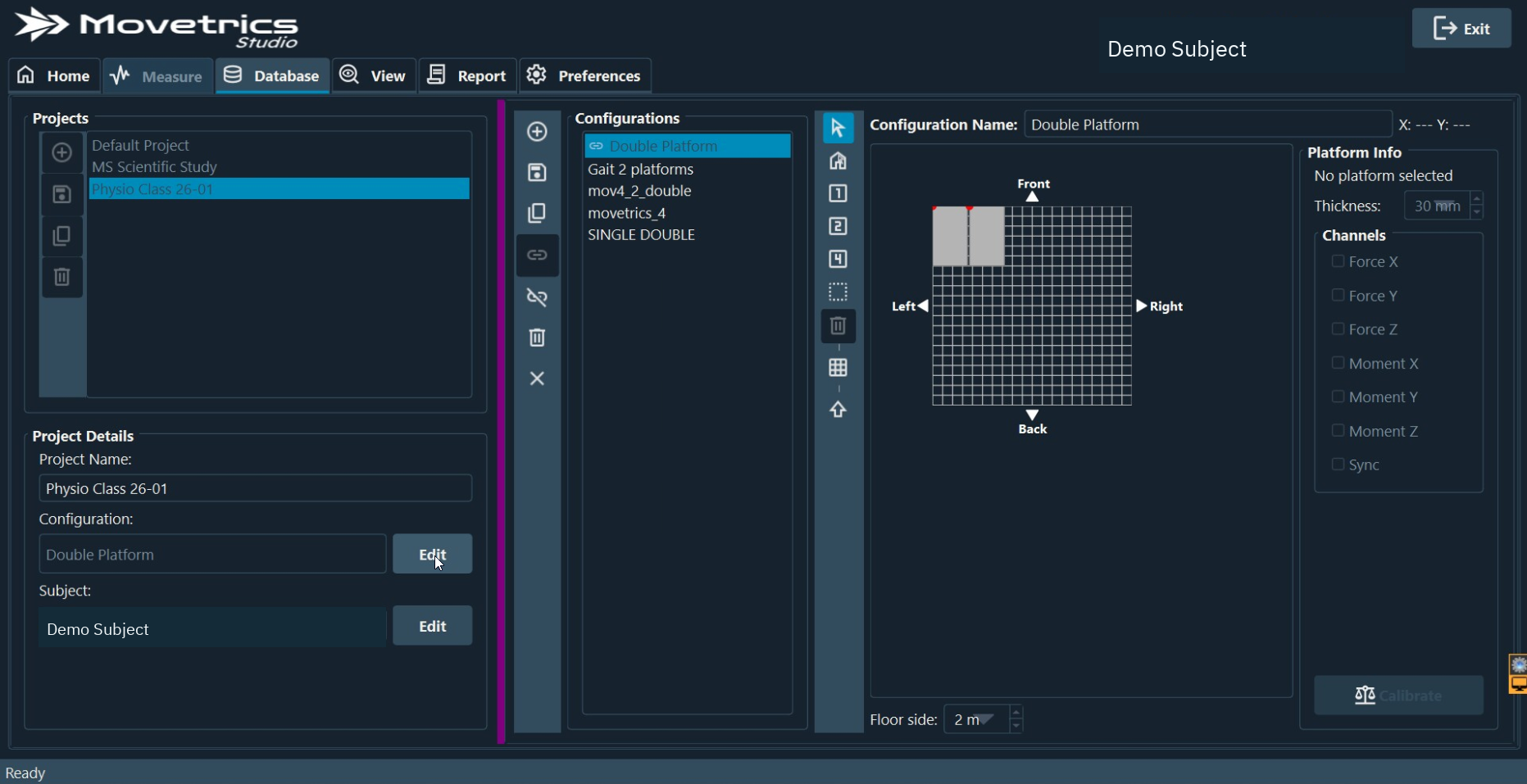
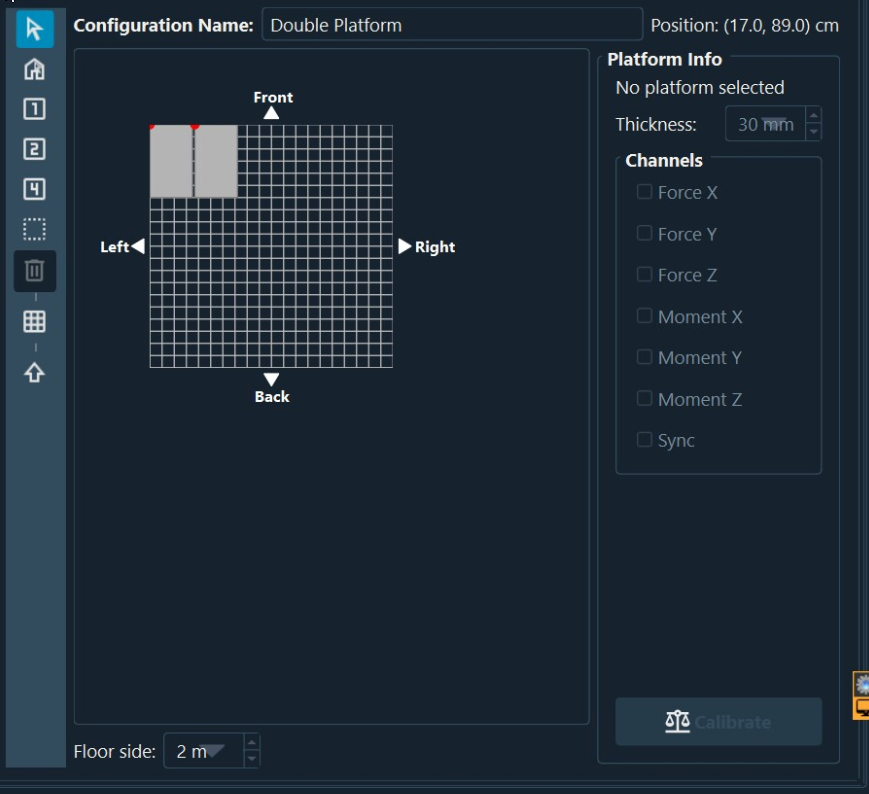
- Open its layout view in Database if you need to inspect the geometry.
- Compare each displayed platform number with the corresponding physical plate.
- Compare the displayed orientation with the marked orientation on each plate.
- For adjacent tasks, verify which configured platform receives each foot. Do not assume a platform-to-side mapping.
- For gait, verify the approach direction and the sequence in which the person will contact the plates.
- If Movetrics Studio asks for a restart after a configuration change, save work, restart, and select the configuration again before measuring.
- Return to Home and confirm the final selection.
You should now see
The selected software layout and the physical plate arrangement match in number, position, orientation, and task direction.
Stop or repeat when
- A platform number, position, orientation, or direction does not match.
- The required approved configuration is missing.
- A restart is requested but has not been completed.
If it does not work
Do not edit calibration or create an improvised layout. Keep the plates unloaded and ask an authorised administrator to select or verify an approved configuration.