

Outcome
Create a report from a reviewed examination, check its contents, and save the PDF to an approved location.
Applies to
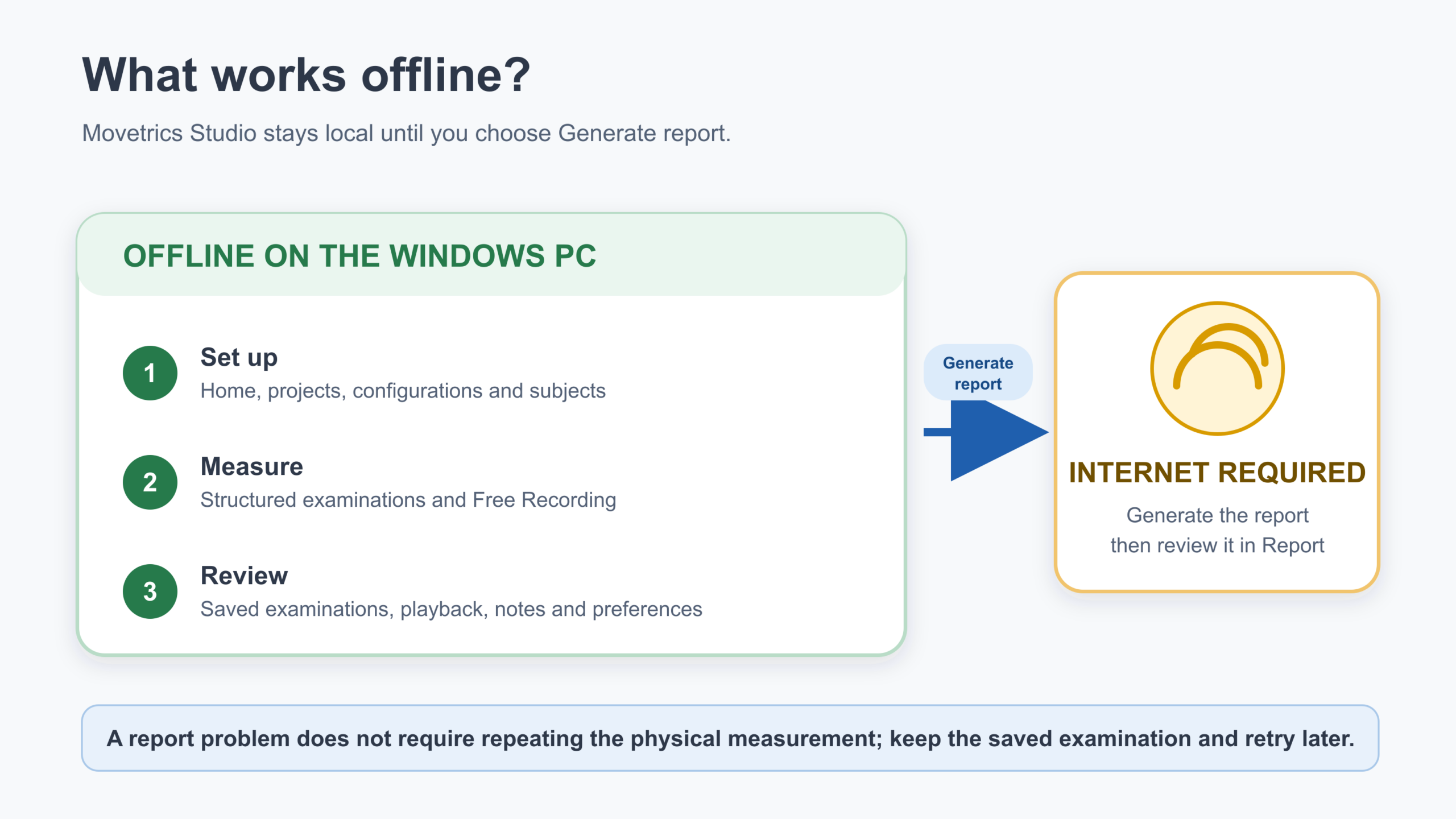
Report generation starts from a saved examination in View and requires an internet connection. All other documented Studio functions work offline. Do not repeat the physical task only because report generation is temporarily unavailable.
Before you begin
- Confirm the trial has passed the operator quality review.
- Complete the examiner and notes.
- Confirm a network connection is available.
- Know the approved storage location and file-naming rule.
Steps
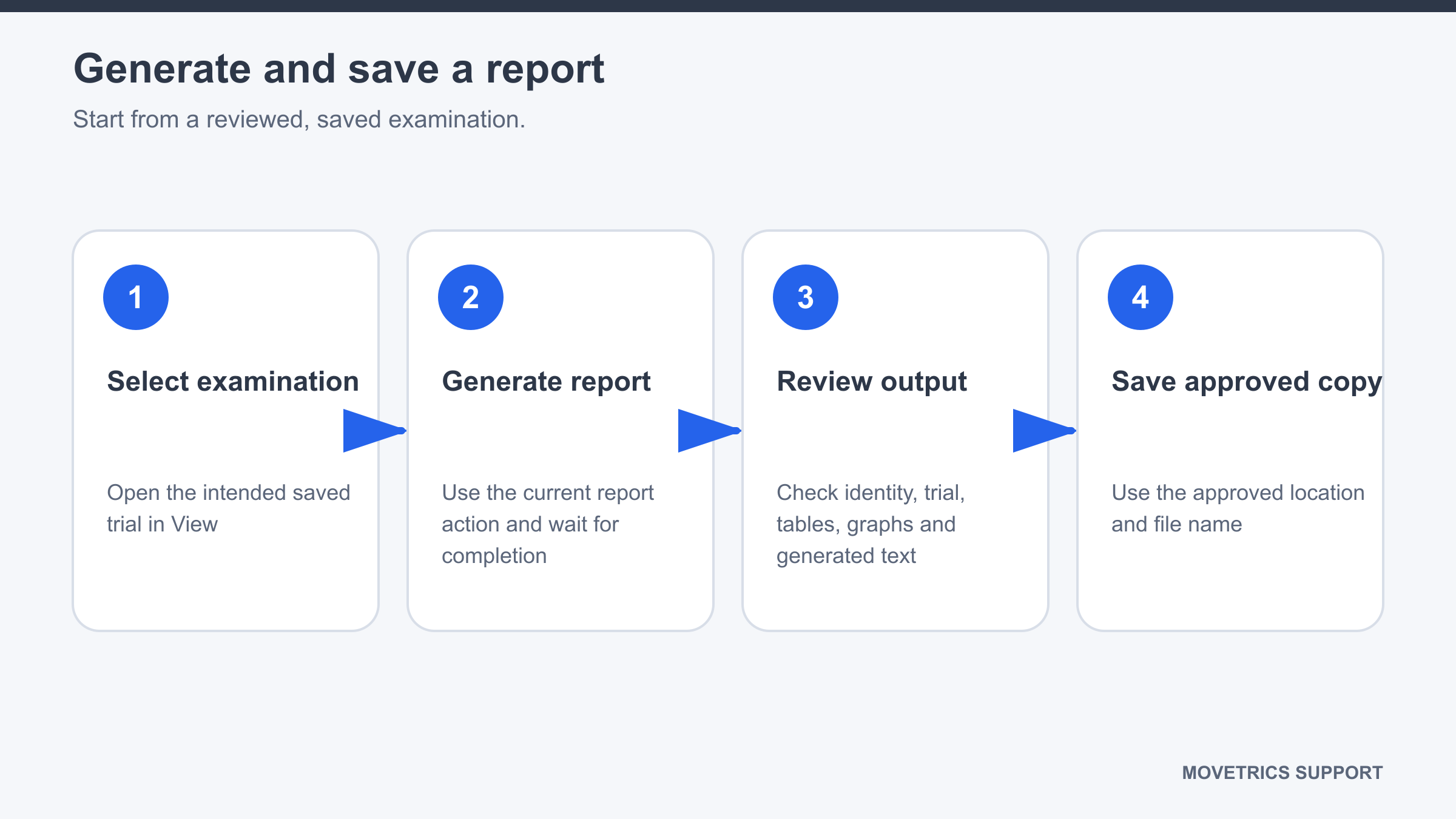
- Open View and select the intended saved examination.
- Recheck the project, Subject, protocol, date and time, and configuration.
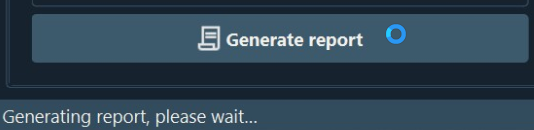
- Select Generate report.
- Wait while the report is created. Do not close Movetrics Studio or start another examination.
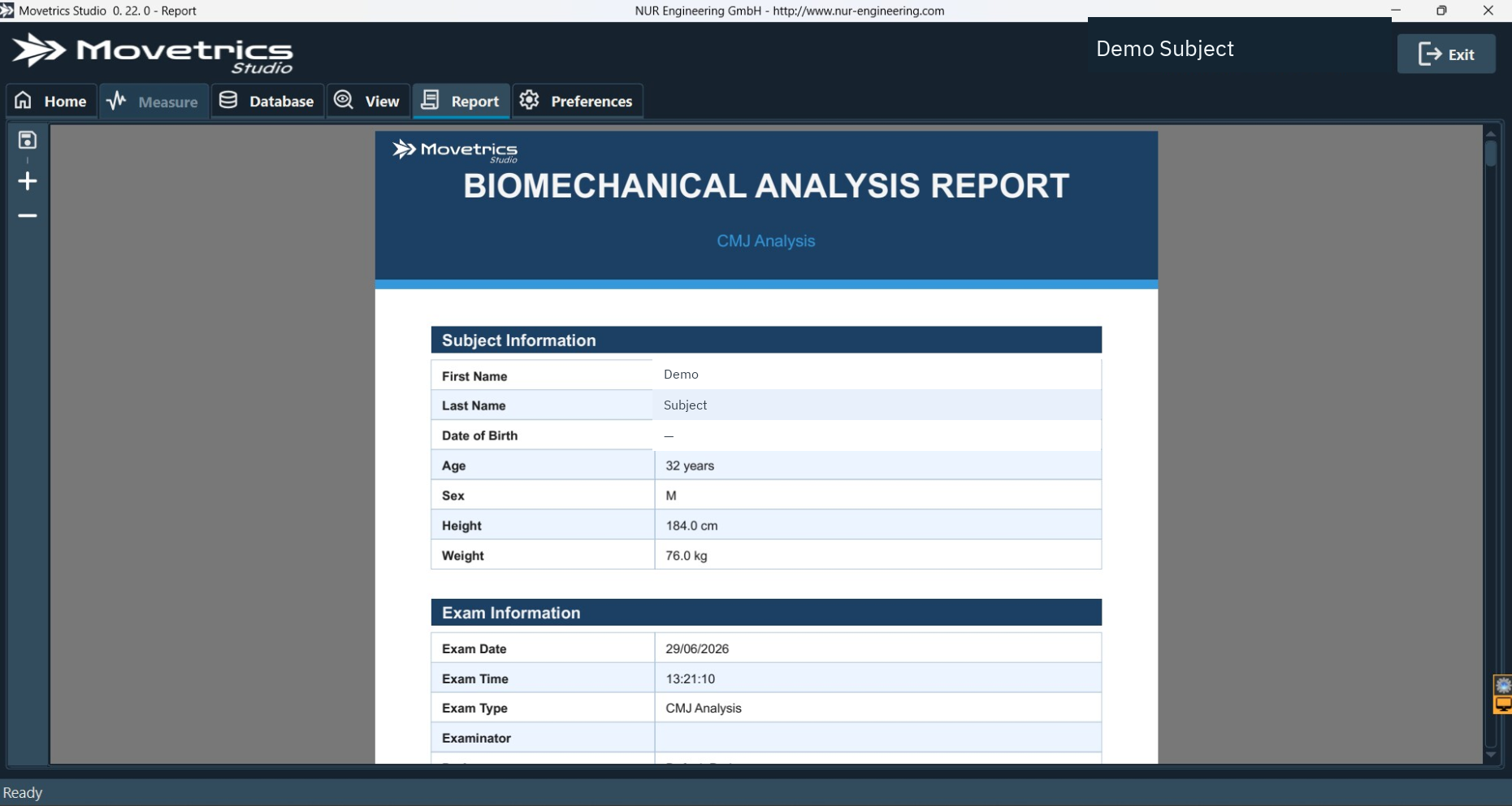
- When Report opens, check that it belongs to the selected examination.
- Review the details, tables, units, graphs, and automatically generated AI text.
- Compare important statements with the saved trace and recorded task. Do not accept a report that conflicts with them.
- Use the save control in Report.
- Choose the approved customer location and a file name that identifies the examination without exposing unnecessary personal information.
- Open the saved PDF once and confirm it is complete and readable.
You should now see
A complete report in Report and a readable PDF saved in the approved location for the correct examination.
Stop or repeat when
- The selected examination has not passed review.
- Report details, values, units, graphs, or text conflict with the trace or task.
- The save destination or recipient is not approved.
- Report generation repeatedly fails or opens the wrong content.
If it does not work
Keep the original examination. Check the network, then retry Generate report from the same saved examination once. Do not repeat the physical measurement solely to solve a reporting problem.