

Outcome
Read a Movetrics report in a consistent order and detect internal mismatches before using its contents.
Applies to
Report sections vary by examination and customer build. This guide explains how to review the report, not how to calculate or validate each metric.
Before you begin
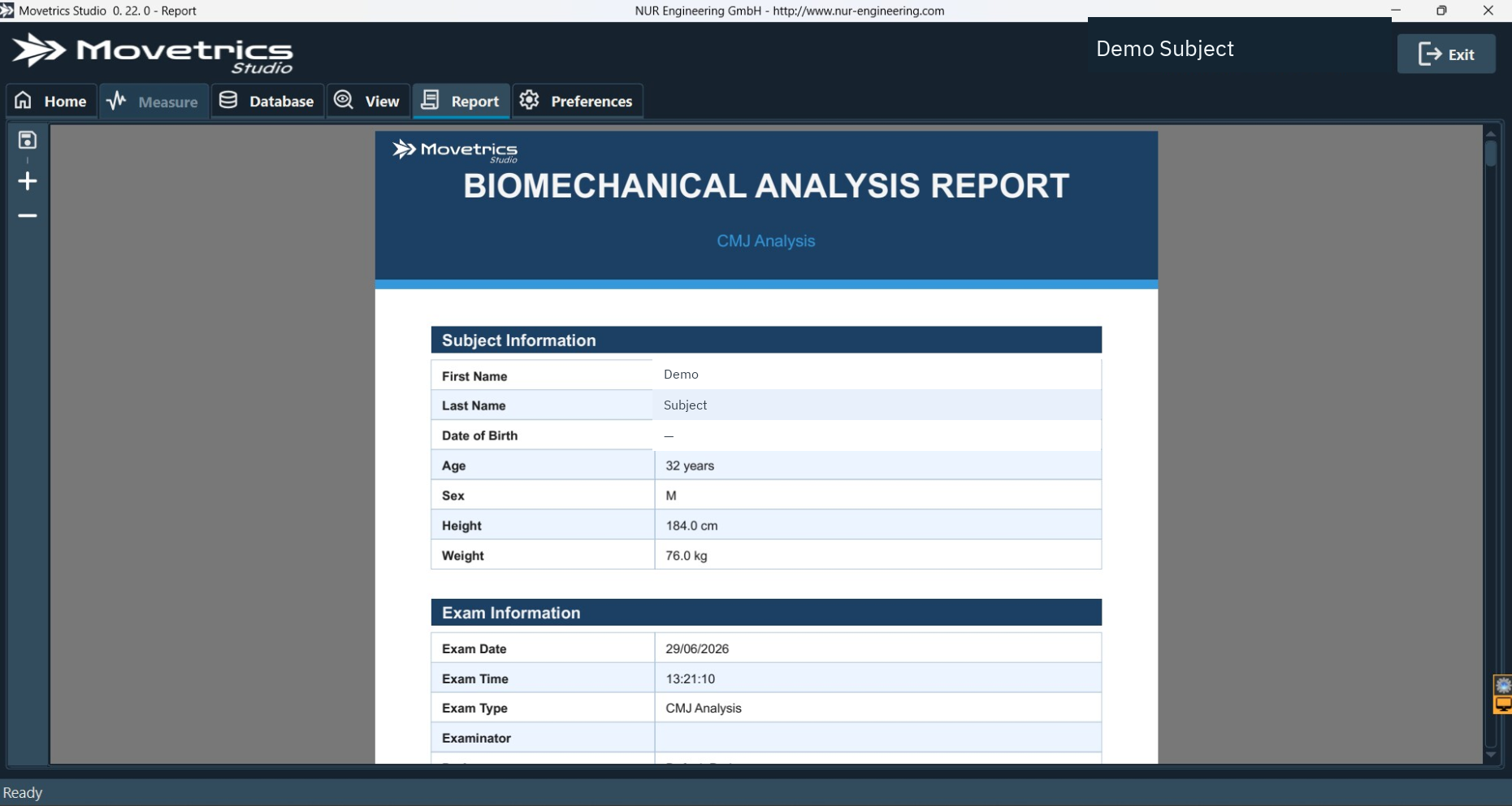
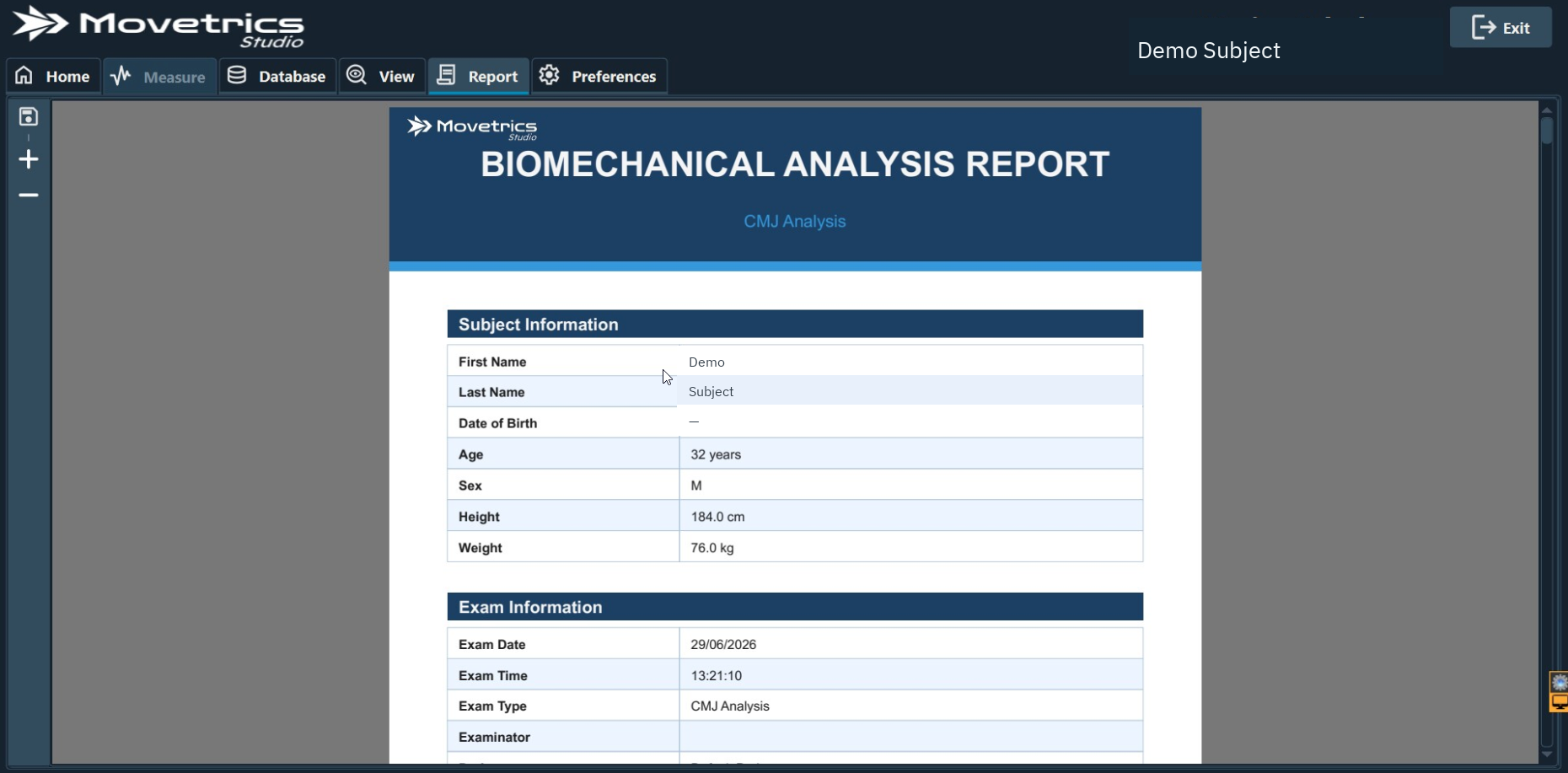
- Open the saved examination in View and the matching report in Report.
- Have the examiner notes and test conditions available.
- Confirm the recorded trial passed the quality review.
Steps
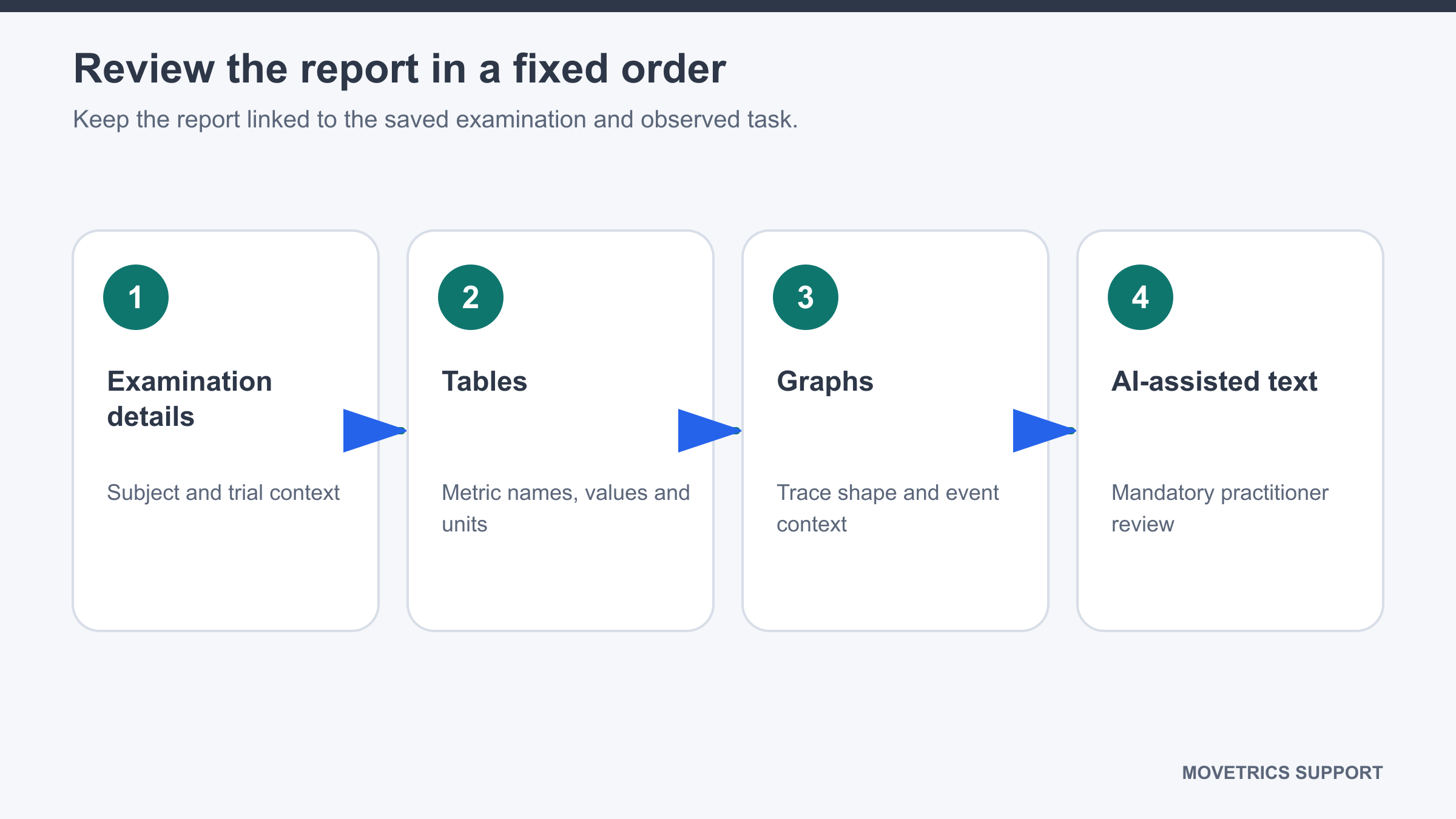
- Start with the examination details. Confirm the Subject, protocol, date and time, and other displayed context match the saved trial.
- Read the metrics table row by row. For each value, check its name, unit, and whether it belongs to the selected protocol.
- Treat each platform label according to the selected configuration; do not assume a fixed left/right assignment.
- Review each graph title, axis label, unit, legend, and visible event order.
- Compare table values and descriptions with the visible shape and timing of the saved trace where this is possible.
- Read displayed ranges or colours only as software-provided comparison displays. Do not treat them as established reference populations or decision limits unless separate approved documentation defines them.
- Read the AI-assisted text last, after reviewing the measured content.
- Remove or reject any statement that conflicts with the table, graph, protocol, notes, or observed task.
- Record any inconsistency and stop use of the affected report until it is resolved.
You should now see
The report identity, table, graphs, and text describe the same examination without an unexplained conflict.
Stop or repeat when
- A value lacks a clear name or unit.
- Platform assignment, event order, graph, table, or description conflicts with the saved examination.
- A displayed comparison is presented more strongly than its approved documentation supports.
If it does not work
Return to View and compare the original examination. Do not repair the PDF manually or choose the most convenient of two conflicting values. Preserve both the examination and report for review.