

Outcome
Retry report generation from the saved examination without repeating the physical task or losing the original data.
Applies to
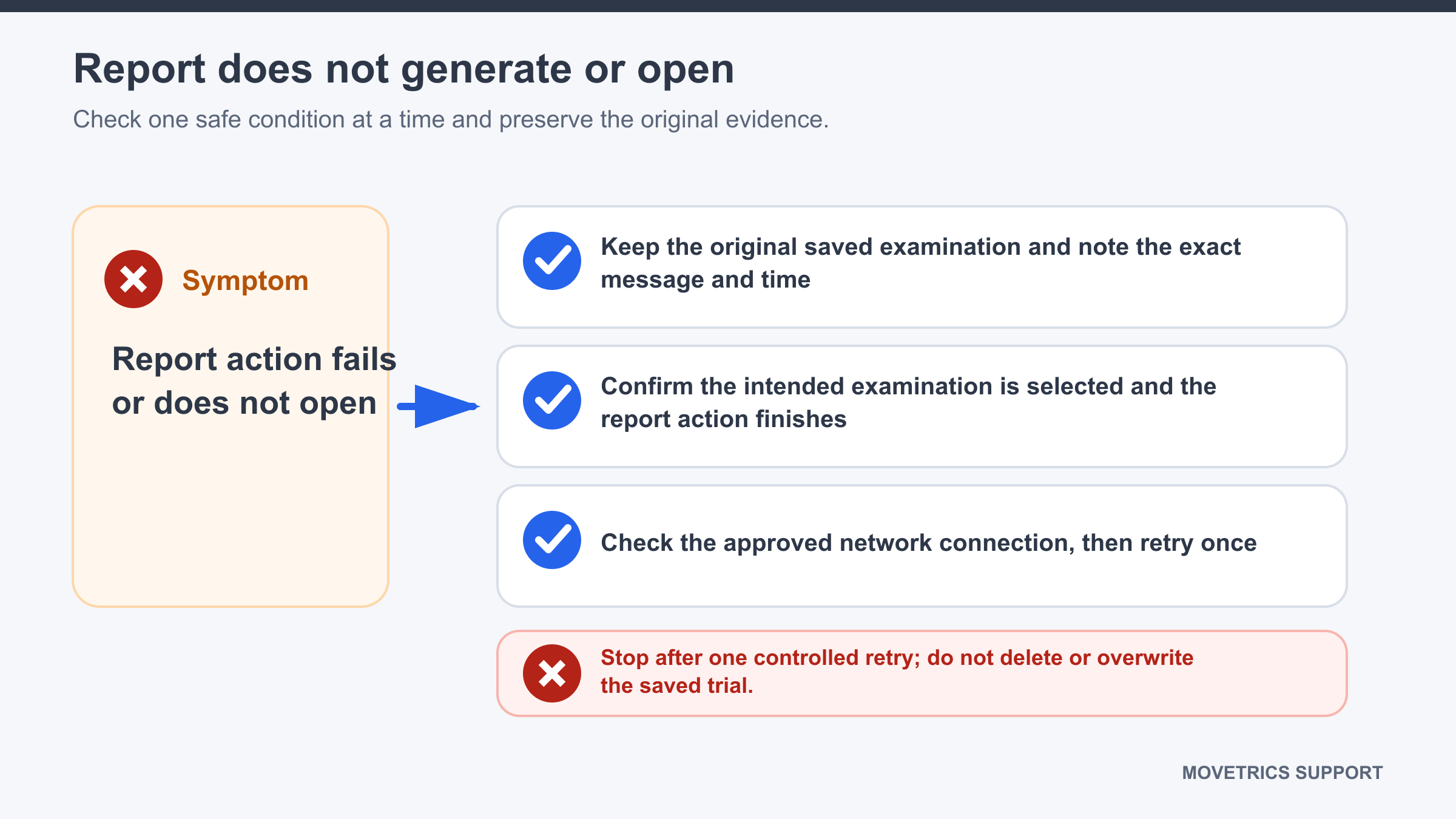
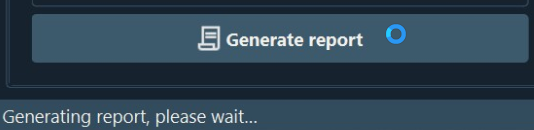
Use this guide when Generate report remains busy, shows an error, or does not open the completed report.
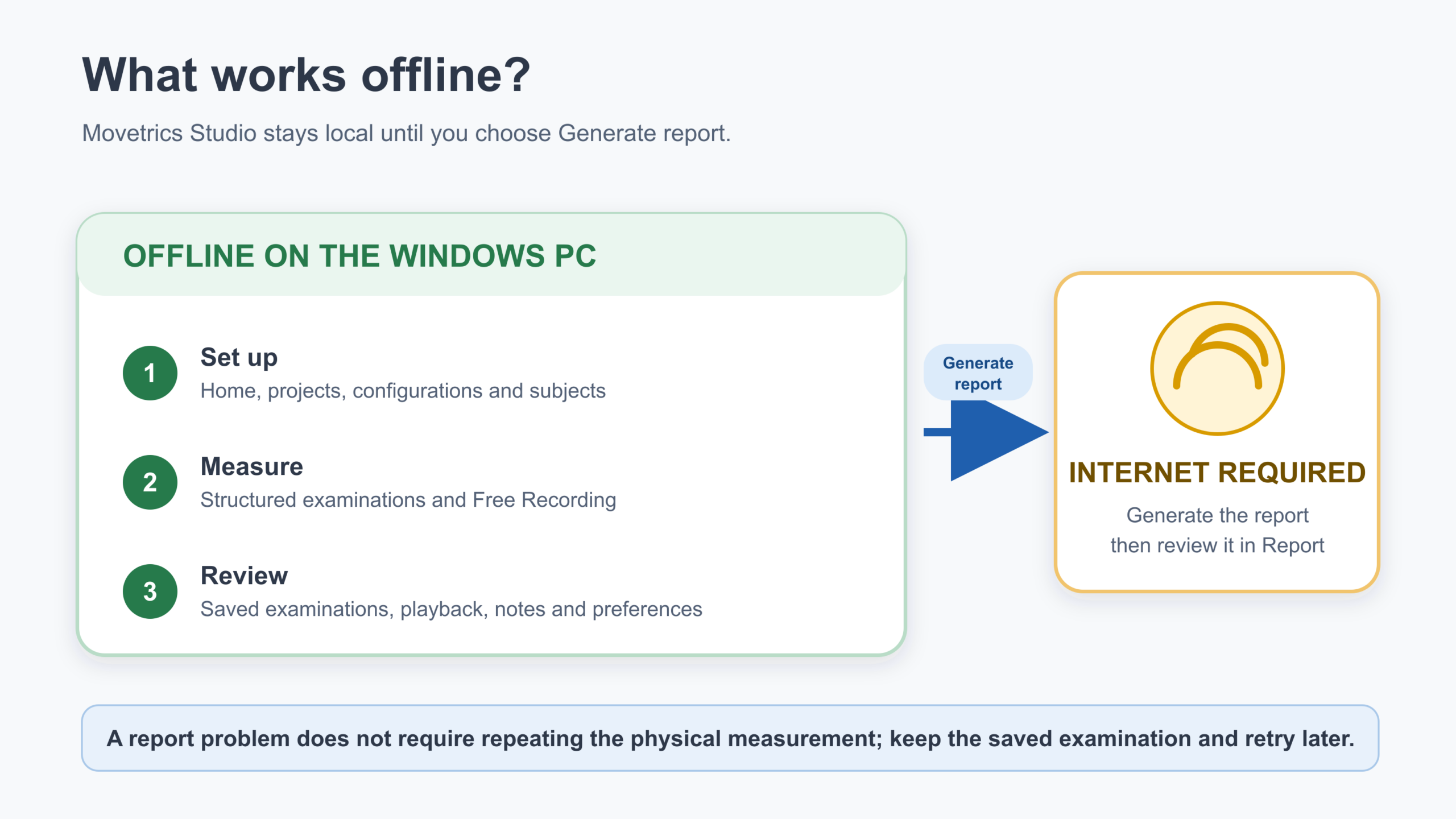
Report generation requires internet access. The saved examination and all other documented Studio functions remain available offline.
Before you begin
- Confirm the examination is saved in View and has passed the quality review.
- Do not close Movetrics Studio while a report operation is still active unless the application has clearly failed.
- Protect any visible Subject information when recording the issue.
Steps
- Wait for the current report operation to finish; do not start another examination.
- Record the exact visible message and the time the problem occurred.
- Confirm the saved examination can still be selected in View.
- Confirm the Windows computer has its normal network connection.
- If the current operation has ended, return to View and reselect the same examination.
- Select Generate report once and wait without changing screens or closing the application.
- If Report opens, verify it belongs to the selected examination and save it normally.
- If generation fails again, keep the examination and stop retrying.
You should now see
The report opens for the saved examination, or the intact examination remains available for later generation.
Stop or repeat when
- The wrong report opens or report content conflicts with the selected examination.
- Generation fails a second time or shows a repeated error.
- The network route or service status is uncertain.
If it does not work
Do not repeat the physical measurement solely because reporting failed. Record the software version, protocol, examination time, exact message, and whether the saved examination still opens.