

Outcome
Reduce display load and determine whether the issue is limited to the 3D view or affects measurement recording.
Applies to
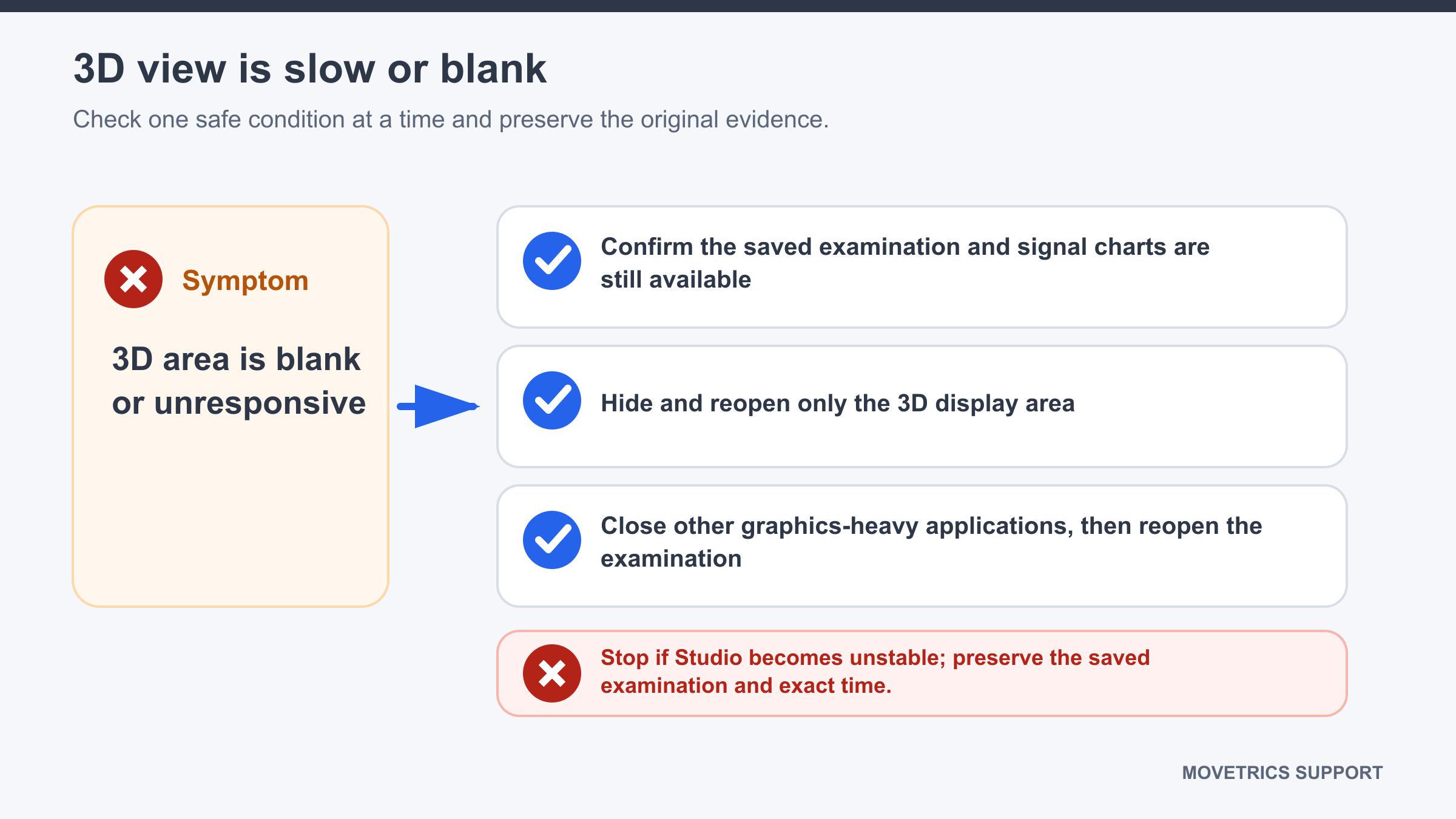
Use this guide when the optional 3D display is blank, delayed, or makes the screen feel slow.
Before you begin
- Keep attention on the person being measured and stop the task if the interface affects safe operation.
- Do not assume that a visible display problem leaves the saved recording unaffected.
Steps
- Observe whether the signal charts, wizard, and controls still respond normally.
- If no recording is active, hide the 3D view using the normal display control.
- Keep only the signal charts needed for the current task visible.
- Confirm that the wizard and controls now respond promptly.
- If a recording was completed, open it in View and inspect the saved traces.
- Continue without the 3D view only when the signal charts, wizard, recording controls, and saved examination remain normal.
- After the session, close Movetrics Studio normally and perform one clean restart before testing the 3D view again.
You should now see
Movetrics Studio remains responsive with the 3D view hidden, and the saved signal traces are complete and reviewable.
Stop or repeat when
- Signal charts, wizard, or recording controls are also slow, frozen, or blank.
- The saved examination is incomplete or inconsistent with the observed task.
- The problem remains after a clean restart.
If it does not work
Stop measurement use and record whether the issue affects live charts, the wizard, recording, playback, or only the 3D display. Preserve the relevant examination and exact time.