

Outcome
Send one clear support request with the system context, exact problem, and safe supporting files needed to investigate it.
Applies to
Use this guide for hardware, connection, tare, measurement, reporting, update, download, or result-quality questions.
Before you begin
- Preserve the original examination and report when the issue concerns a measurement.
- Do not upload identifiable Subject or health information unless you are authorised to share it through the selected route.
- Remove or cover names, Subject details, controller information, activation information, and unrelated screen content from screenshots when they are not required.
Steps
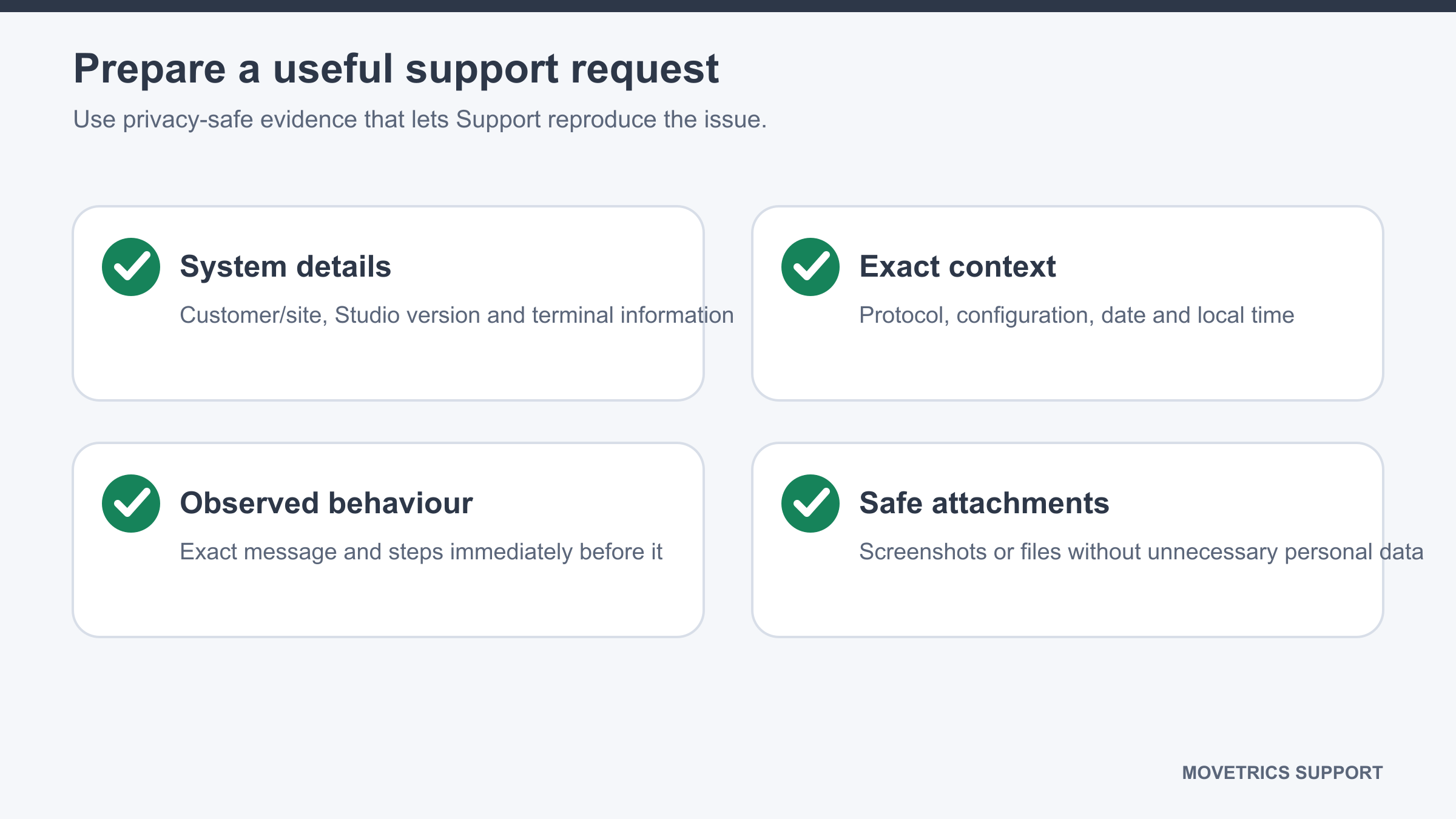
- State your customer organisation or site and your name or role.
- Record the complete Movetrics Studio version from Preferences.
- Record controller and firmware information privately when it is relevant.
- Name the protocol, configuration, and date and time of the issue.
- Describe the exact step you were completing and what happened immediately before the problem.
- Copy the complete visible message exactly; do not paraphrase it if a screenshot is possible.
- State what you expected and what happened instead.
- List the safe actions already tried and their outcome.
- Attach only authorised files needed for the issue, such as a cropped screenshot, report, measurement CSV, or short video. Use synthetic or de-identified data where possible.
- Choose a global support option: Support Request at
/request/, email atsupport@movetrics.com, call at+49 15678 616 529, or WhatsApp athttps://wa.me/4915678616529. - Support hours are Monday–Friday, 08:00–20:00 Europe/Berlin, on German business days.
You should now see
One concise request that identifies the affected system and workflow, reproduces the exact problem, and includes only necessary authorised information.
Stop or repeat when
- You are not authorised to share the selected file or personal information.
- The request lacks the software version, exact step, time, or visible message needed to identify the issue.
- An upload or recipient does not match the approved support route.
If it does not work
Use another global support option and provide the same case summary. If the embedded request form does not load, open its direct fallback link from the Support Request page. Keep the original files in the approved customer location until a secure transfer is confirmed.